The Rate Quote page allows you to automatically compute a quotation for emailing to a customer. Enter the arrive and depart dates by either typing them into the boxes or clicking on the calendar icons to pop up a date selection calendar. On the date selection pop up, click on the month and day and the red arrows to change the year.
For each fee that you have setup, click to enable or disable it being added to the fee subtotal.
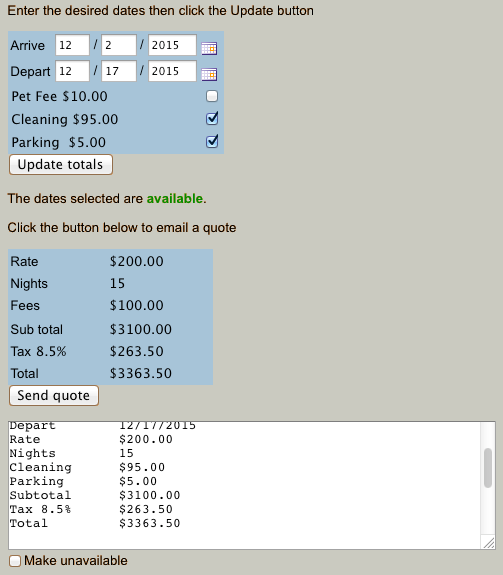
Once the required dates are entered, click on the “Update totals” button to automatically compute the quotation. The results box will be filled in with the quotation values, and the availability calendar will be checked for free dates. A green “dates available” will display or a red “dates unavailable” will display with a link to the availability calendar. You can click the “Make Unavailable” box to change the message to use the unavailable email template even if the dates are really available.
The amount for the stay is computed from rules set on the Rate Settings page. If the arrive date is less that the defined pre-pay days away, the pre-pay warning message will be displayed to warn you that the reservation must be pre-paid. If the dates are within one of the defined black out periods, a warning message will display to inform you that the reservation is not available or restricted.
The quotation summary text box is filled with the template text defined using the Manage Email page for the template named “available”. The {quotation} keyword of the template will be expanded with the quotation details. This text box may be edited before sending, and can be cut and then pasted into an existing email thread.
Your rate quotation widget can be embedded into your website or WordPress blog for inquiry use. See Embedding controls into your website.